olw-player Android · Guide
olw-player Android guide
The same online help available inside the app for tablets and phones, ready to browse before downloading.
This is the Android app's guide. Inside the app it opens from the menu. It covers the Android version only: the computer version has its own guide.
Getting started in 6 steps
- Get a SoundFont (
.sf2file) for MIDI/KAR songs, for exampleairfont_380_final.sf2, and put it in a folder on your phone or tablet. Check the license of the file you download. You can download FluidR3 GM (permissive license, the same bank used in our computer apps). - Tap Choose SF2 and pick the SoundFont.
- Tap Browse and pick the folder with your songs: tick the songs you want and tap Add. Android asks for permission only for that folder.
- Tap Save and give the playlist a name.
- Tap a song in the list to select it.
- Press Play.
Then: try the Options one at a time and compare the result: every song has its own balance.
Formats and lyrics
olw-player plays on the fly, without creating files: MIDI/KAR, MP3 (with or without CD+G) and video (mp4, mkv, avi, mov, webm...). Sound enhancements for MIDI files are applied during playback: the original file is never modified.
- MIDI/KAR: synchronized lyrics from the file, if present.
- MP3: synchronized lyrics if the file contains them (ID3 SYLT); otherwise no lyrics. If a
.cdgfile with the same name sits next to it, the karaoke graphics are shown. - Video: the video is shown, with the audio of the file.
Adding songs
The app never asks for access to all your files: it uses Android's picker and works only on the folder you choose.
- Browse: navigate your folder, tick the songs (or Select all) and tap Add. You can pick another main folder with the icon at the top.
- Path: uses a folder and its subfolders to create a playlist with all the songs found in one go. Before proceeding the app shows how many songs it found and how much space the copies take.
- + Add: picks individual MIDI, KAR, MP3 or video files.
How files are read. Small files (MIDI, KAR and CD+G) are copied inside the app, because the synthesizer and the decoder need to read them as real files. MP3 and video files are not copied: they are read directly from your folder. If you use a synced folder (for example Nextcloud), files are downloaded when they are needed.
Playlists
- Save: saves the list as a
.plifile inside the app. - Open: reopens a saved playlist. Songs that can no longer be reached are reported.
- Remove: removes the selected song from the list.
- If you do not save, the list stays available for quick listening.
The .pli format is the same as in the computer version.
Playback and controls
- Play, Pause, Stop and the progress bar to move inside the song.
- Key: transposes the song. For MP3 and video the change goes from -3 to +3 semitones; it is not available if the audio of the video does not allow it.
- Style (MIDI only): re-arranges the accompaniment in a different style. Original leaves the song as it is.
- Mute lead / Mute backing (MIDI only): removes the lead part or the accompaniment.
- Reverb and Drums (kit): room and drum kit; As in the song follows the file.
- Volume and Soften: the amount of softening that lets the vocals stand out.
SoundFont
The SoundFont (.sf2) is the set of sounds used for MIDI/KAR songs. Choose it once with Choose SF2 and it is remembered; the name shown is the name of the chosen file.
Lyrics display
- Word: highlights each word as it is sung.
- Phrase: shows the current phrase and the next one.
- Scroll: lines scroll continuously.
Next line notice: a few seconds before singing resumes, "Next line in ... s" appears. It works in all three modes.
Lyrics on phones (QR)
The audience can read the song lyrics on their own phone, with nothing to install: they just scan the QR code with the camera. The QR is next to "No song selected"; tapping it enlarges it and shows the explanation.
- Phones must be on the same Wi-Fi network as the tablet (the venue's Wi-Fi, a router or the tablet's hotspot).
- If you wish, you can type the network name and password in the dialog: a second QR appears to join the network (the password is remembered).
- The page works for MIDI/KAR songs and MP3 with lyrics (ID3). For video and CD+G the page tells people to look at the screen.
- The page uses the language of the phone (Italian or English).
External screen and network screen
- External monitor (HDMI/Miracast): if Android detects it, lyrics, video and CD+G are also shown there. "External monitor" appears at the top.
- Mirror: shows in the window a preview of what the audience sees.
- Network screen: from Options (app menu) → Network screen the tablet looks for a receiver on the same Wi-Fi network, for example a Fire Stick connected to the TV, and sends lyrics and video to it. You can also type the address by hand.
- Receiver: on the stick or TV the app starts by itself as a screen. On another tablet or phone choose Use this device as a screen from the menu.
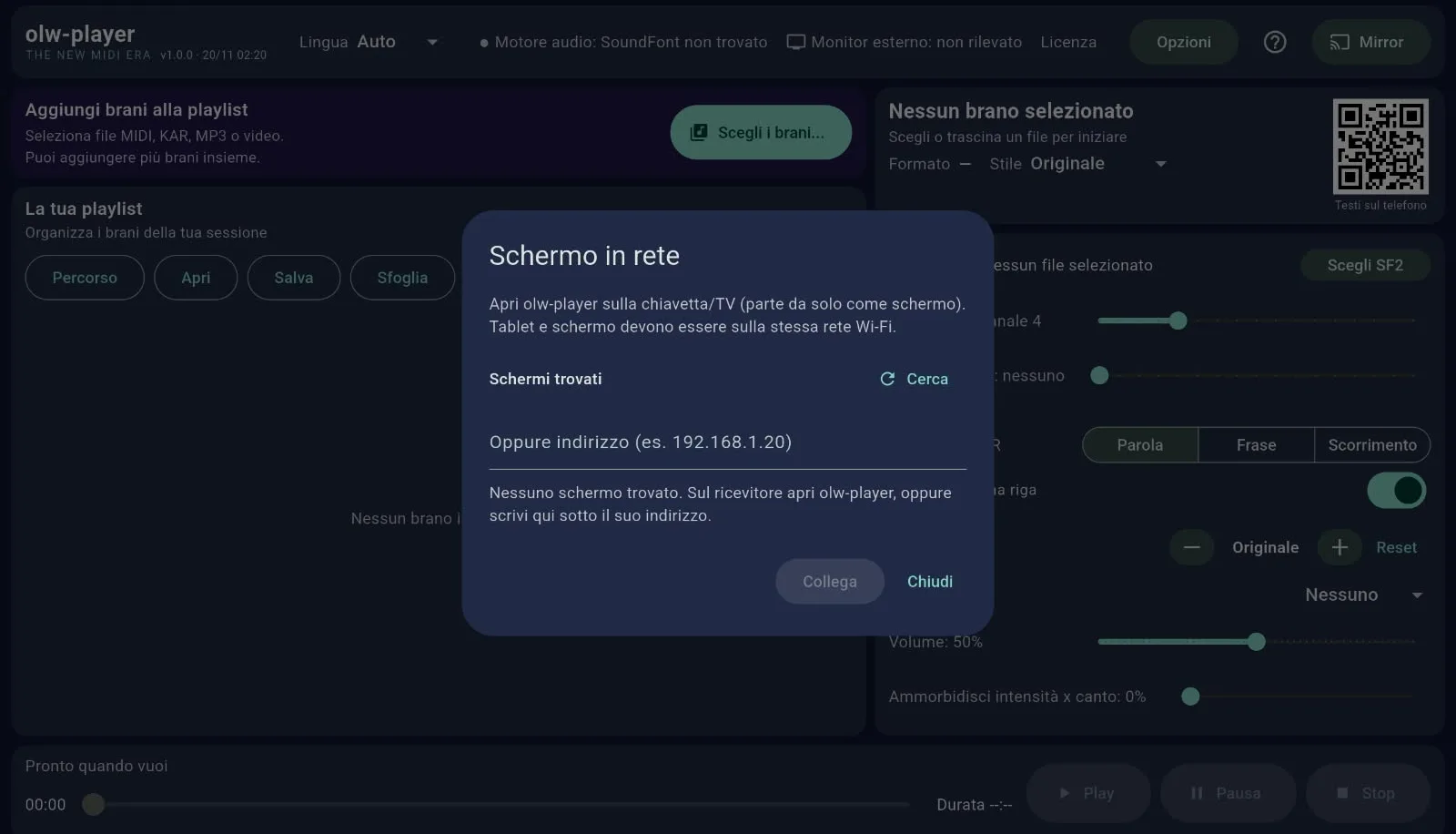
Network screen: the tablet looks for the stick or TV on the same Wi-Fi network.
Video, MP3 and CD+G
For an MP3 song with a .cdg file of the same name in the same folder, the karaoke graphics are shown on the app screen and on external screens. For video, the audio is that of the file; the key change is limited to ±3 semitones and may be unavailable.
Sound effects (bass, low-mids, treble, brightness, warmth) also apply to MP3 and video; the other options concern MIDI/KAR only. If the device has no equalizer, the effects are skipped and the MP3 plays normally.
Options
The app menu contains the MIDI/KAR options: musical corrections, humanization, balance, reverb, chorus, leveling, equalization and more. Changes are saved immediately and apply to the song being played. Every item is explained in the Options guide.
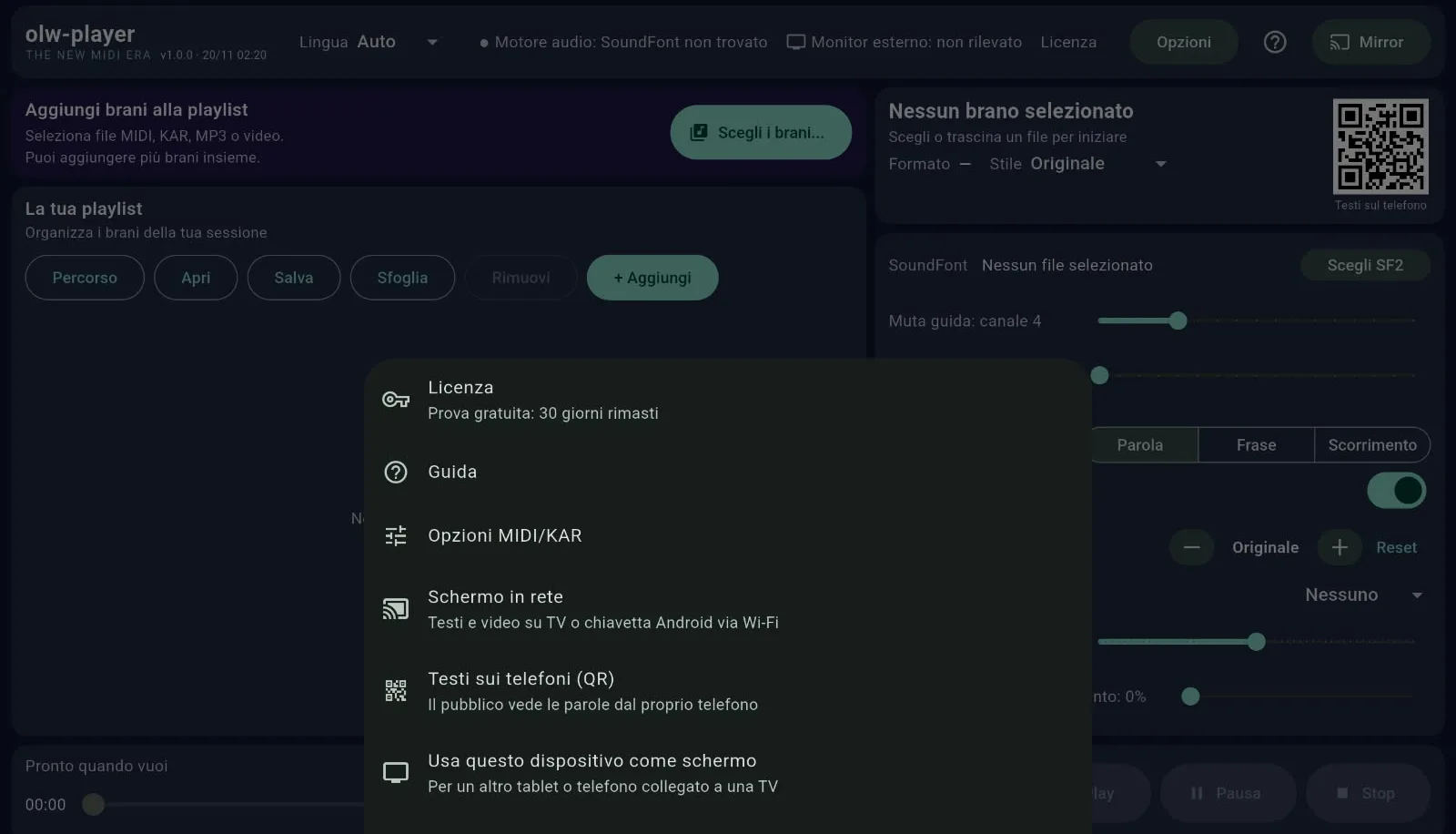
The app menu: license, guide, MIDI/KAR Options, network screen, lyrics on phones (QR).
Delete song copies
In the app menu, Delete song copies removes the copies of small files (MIDI, KAR, CD+G) made by the app and shows the space freed. Your original files are not touched. After the cleanup the current list is emptied and saved playlists must be recreated with Browse or Path.
Language
At the top, the Language menu lets you choose Auto (follows the device language), Italiano or English. The change is immediate and remembered.
Known limits
- Exporting the processed MIDI is not available.
- The phone page does not show lyrics for video and CD+G.
- Some MIDI effects are those available on the built-in synthesizer; the equalizer for MP3 and video depends on the device.